Our goal is to remove the friction associated with creating powerful direct mail marketing campaigns. Keeping track of the images used to create your mailers can become a real problem. Having a single place to store these assets to be re-usable across all mailers helps solve that problem.
We built the eduPostal Asset Manager to help solve this problem. The Asset Manager is where you upload, store and manage image files in all of your eduPostal templates.
What Type Of Files Does The Asset Manager Manage?
The Asset Manager is designed to handle .JPEG and .PNG files that are 5 MB in size or below. We recommend using .JPEG files for most of your images, including full background images.
Use .PNG files for images that require transparency, such as logos.
How Can I Access The Asset Manager?
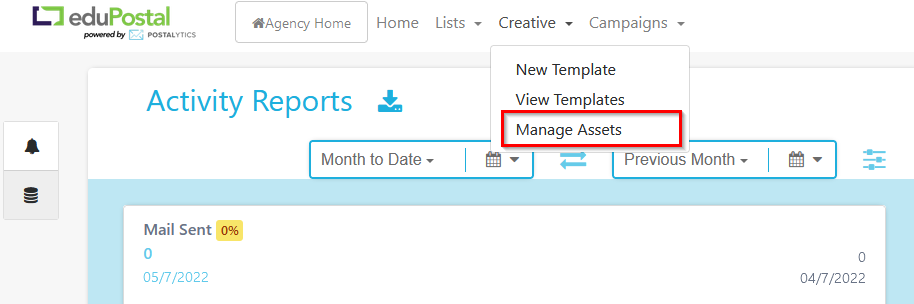
The Asset Manager can be accessed from the “Creative” top menu selection, as well as from within the eduPostal Editor.
How To Use Folders
It is easy to add folders to help organize your files. To create folders from the Asset Manager, choose Creative/Manage Assets and select New Folder.

Once your folder is created, you can simply drag and drop files onto the folder to organize your files.
How Can I Rename Or Delete Images?
It’s easy to rename, delete or move images around—click/right-click to access the manage menu.
You can drag & drop images into folders to keep your Asset Manager well organized.