When registering for a eduForms account, you will be asked to provide your email address. If you signed up with your Google or Facebook account, eduForms would fetch your Google or registered email address with Facebook as your primary email address. By default, all emails from eduForms, including the email alerts from your forms, are sent to your email address. If you want to change your account email address, follow the steps below.
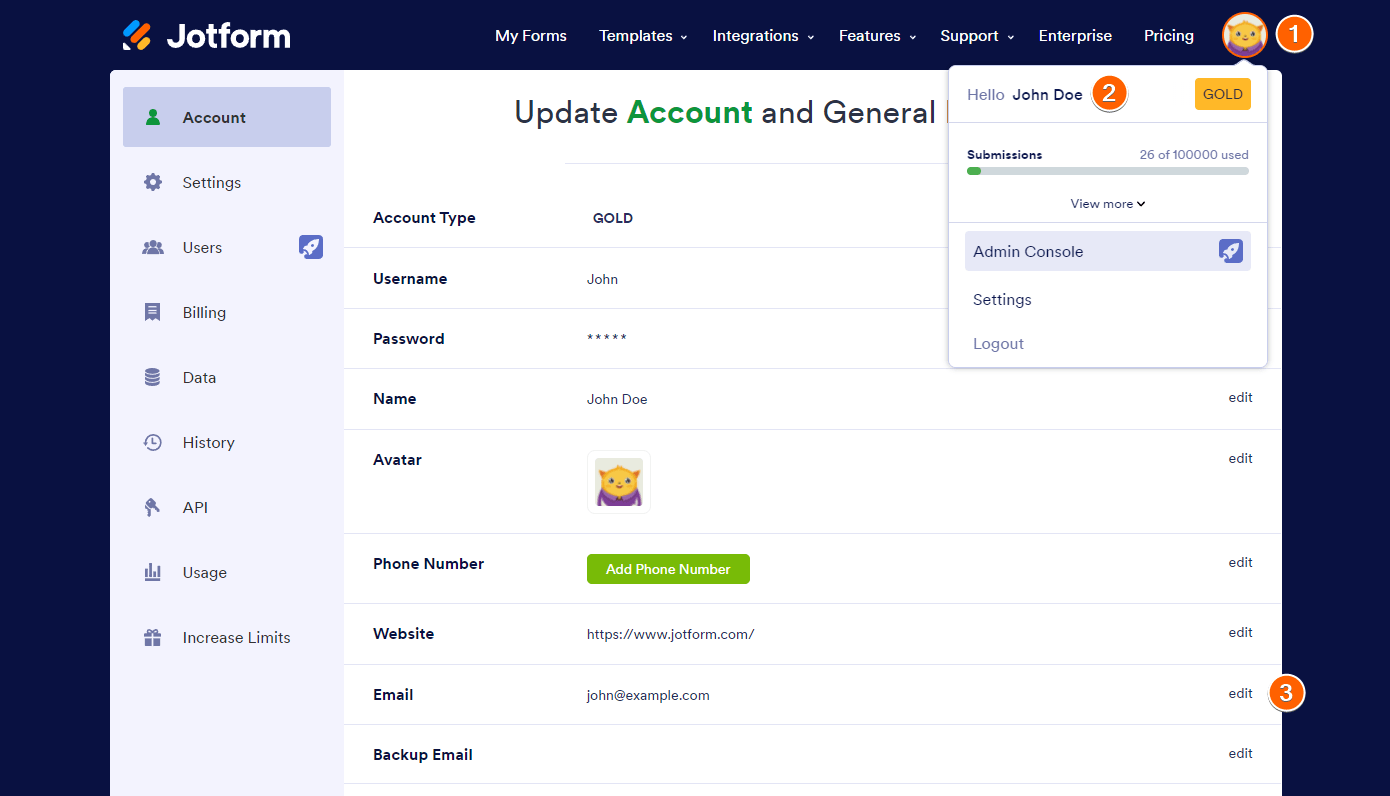
- Hover on your profile picture at the top right corner of the website.
- Click on your name.
- You’ll see your registered email address at the bottom of the Profile Page, click on Edit.
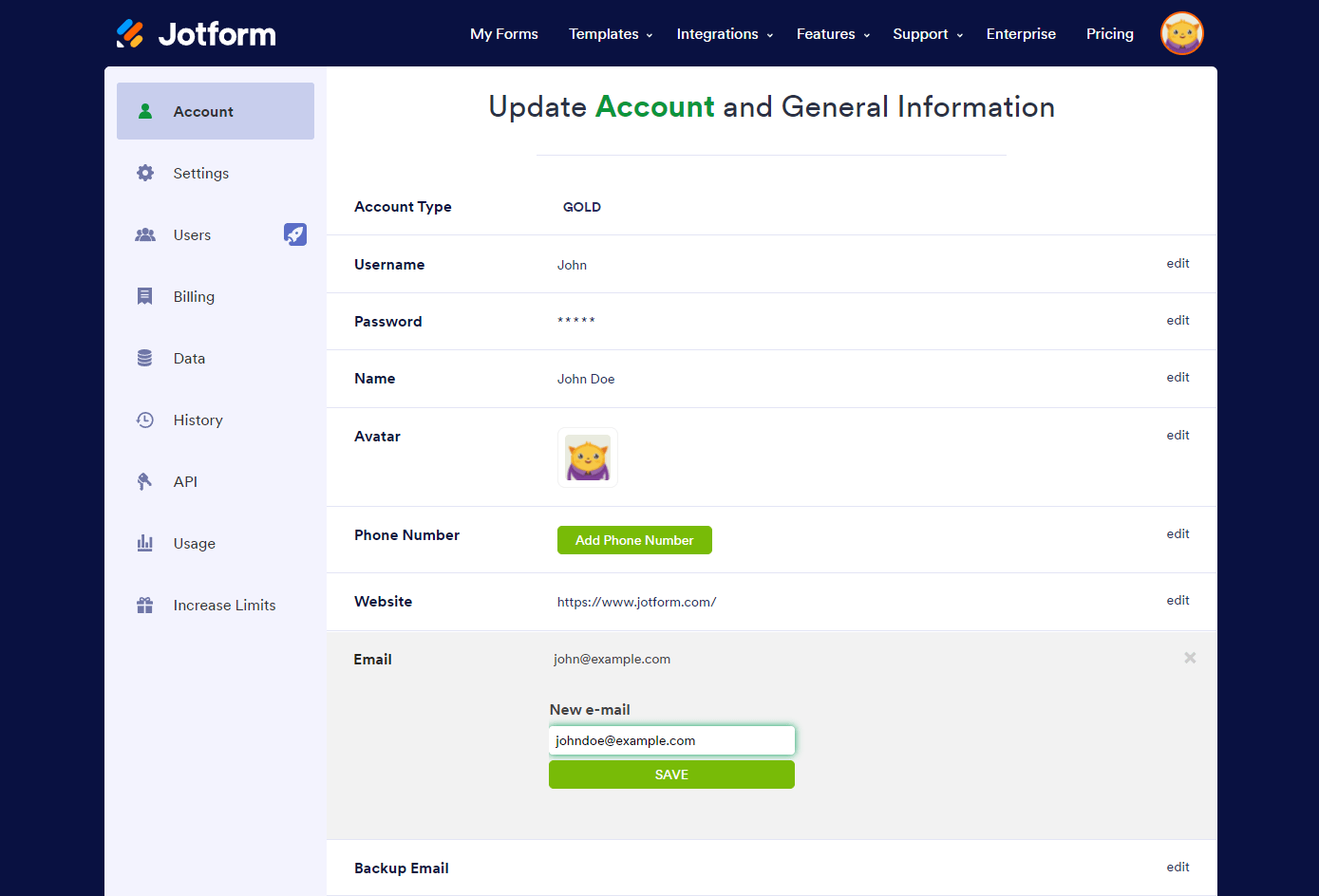
- Add the new email address and click the Save button.
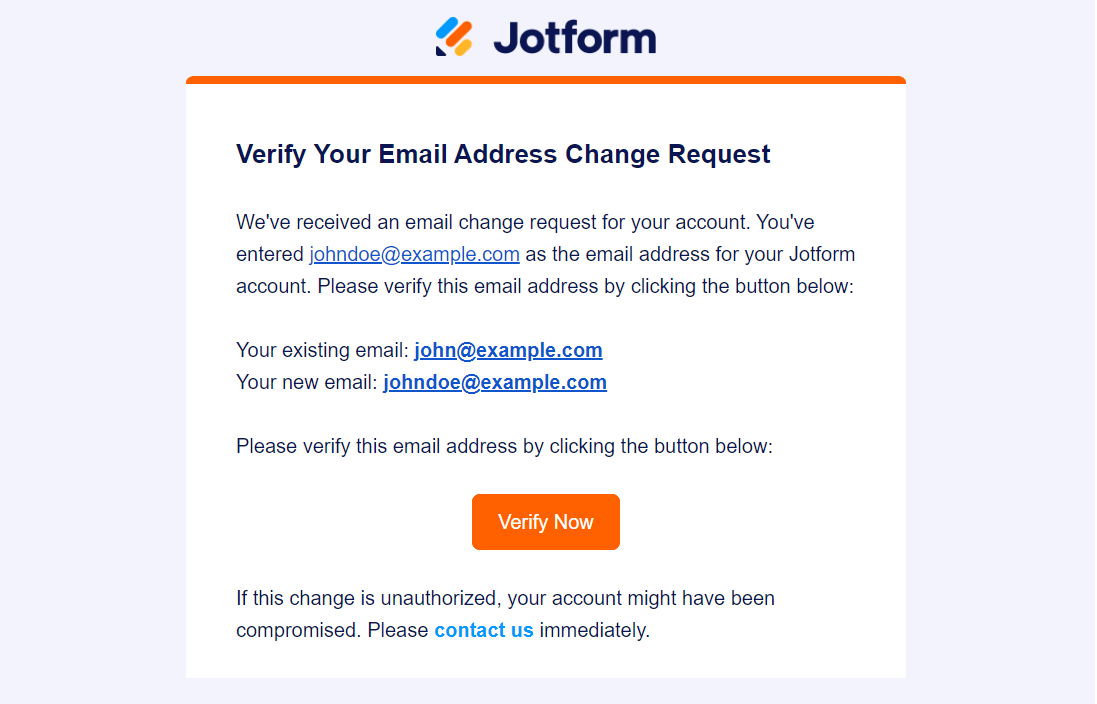
If “Require verification to change email” is enabled under your Privacy Settings, you will get the below verification email to verify the update:
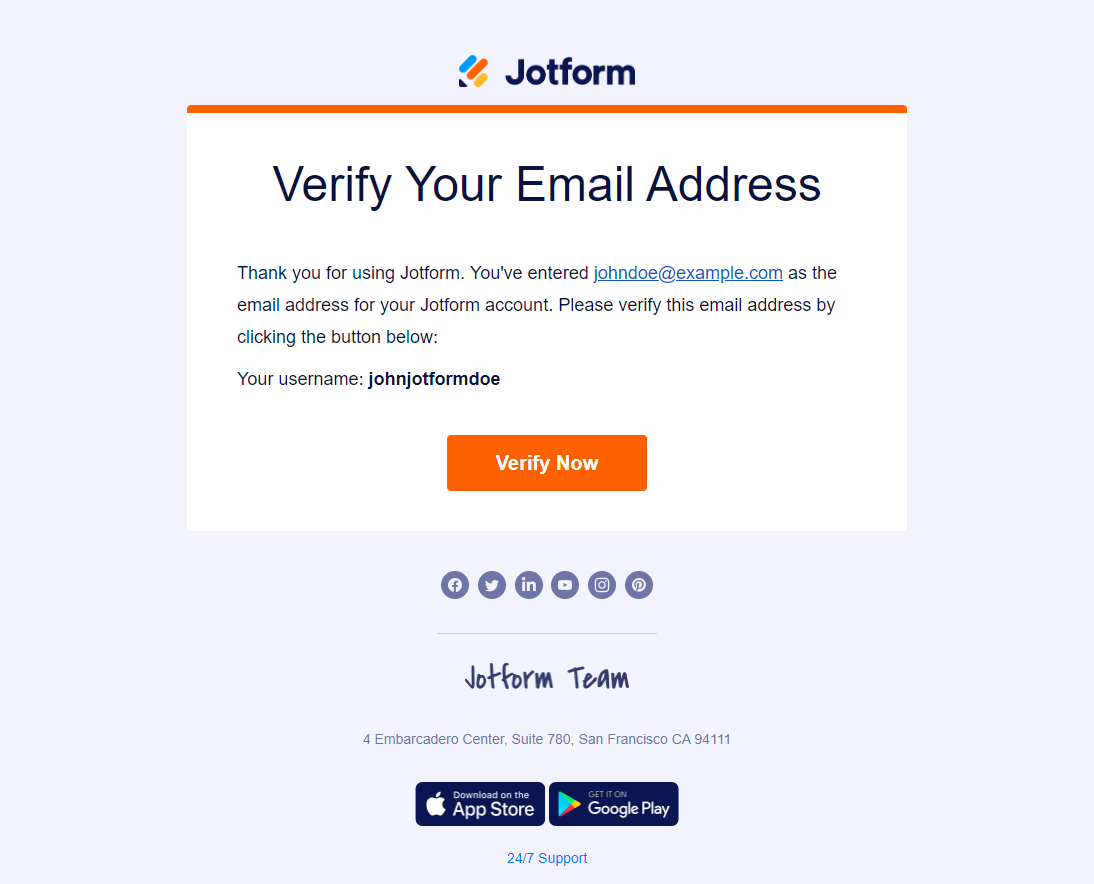
Regardless of the Privacy settings, you will also get the following email to verify the new email address of the account.
Note that you do not need to change your account email address if you only want to update the recipient of your forms. Instead, edit the email address(es) through your form email settings.