What is the benefit of adding a CAPTCHA field?
CAPTCHA helps protect your forms against spammers and spambots that are programmed to attack websites flooding them with tons of unwanted information by requesting that a physical code word is typed into the box to be matched and checked.
You can add the captcha in your form by following the below simple steps:
- In the form builder, click the Add Form Element button.
- Under the Basic Elements, find the Captcha element.
- Drag/drop the element to your form.
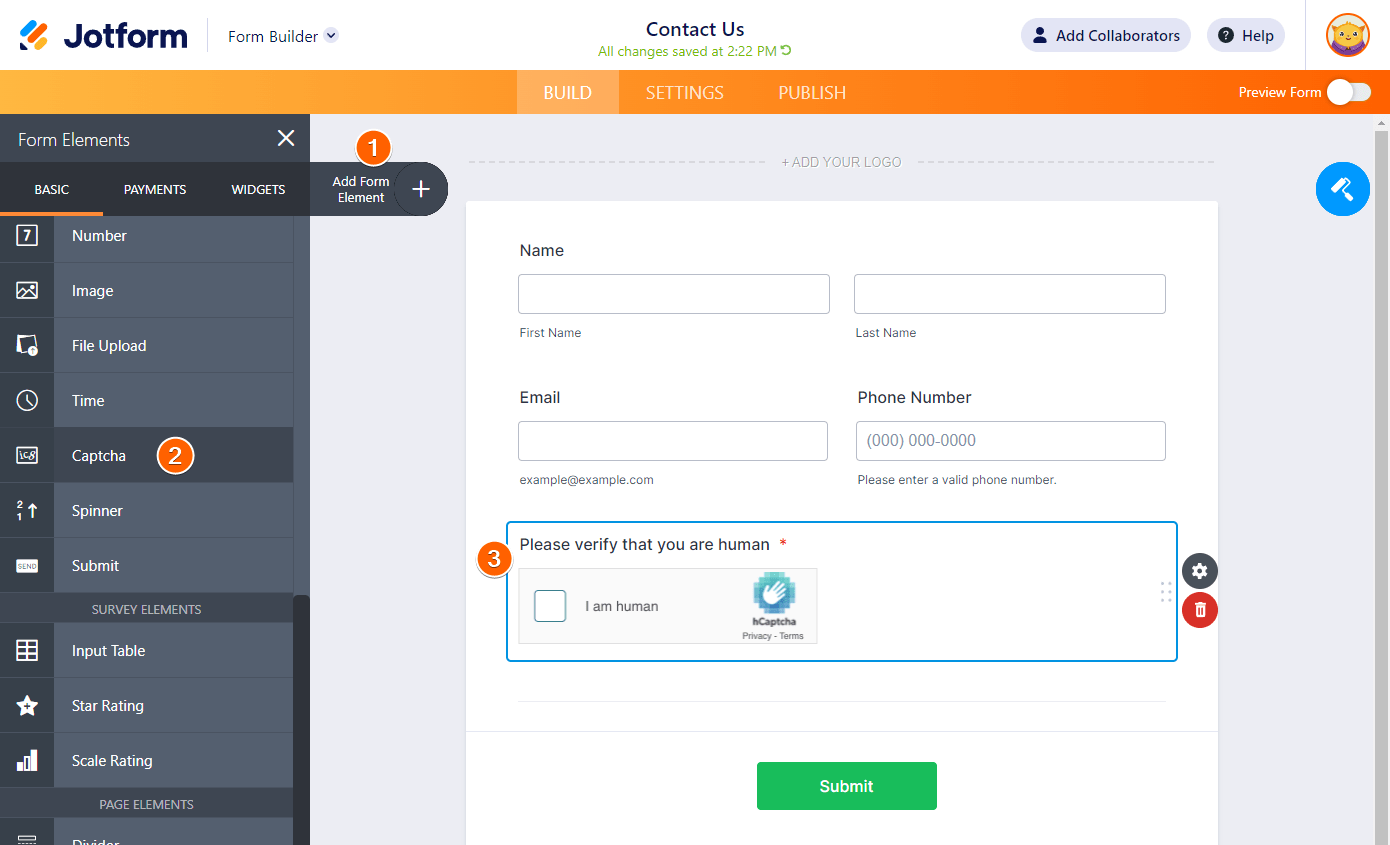
eduForms has three (3) types of captchas. The hCAPTCHA, reCAPTCHA, and JotCaptcha. You can read more about these captchas below. If you wish to change the captcha type, you have to open the Properties by clicking the Gear icon in the captcha. See the below image for reference:
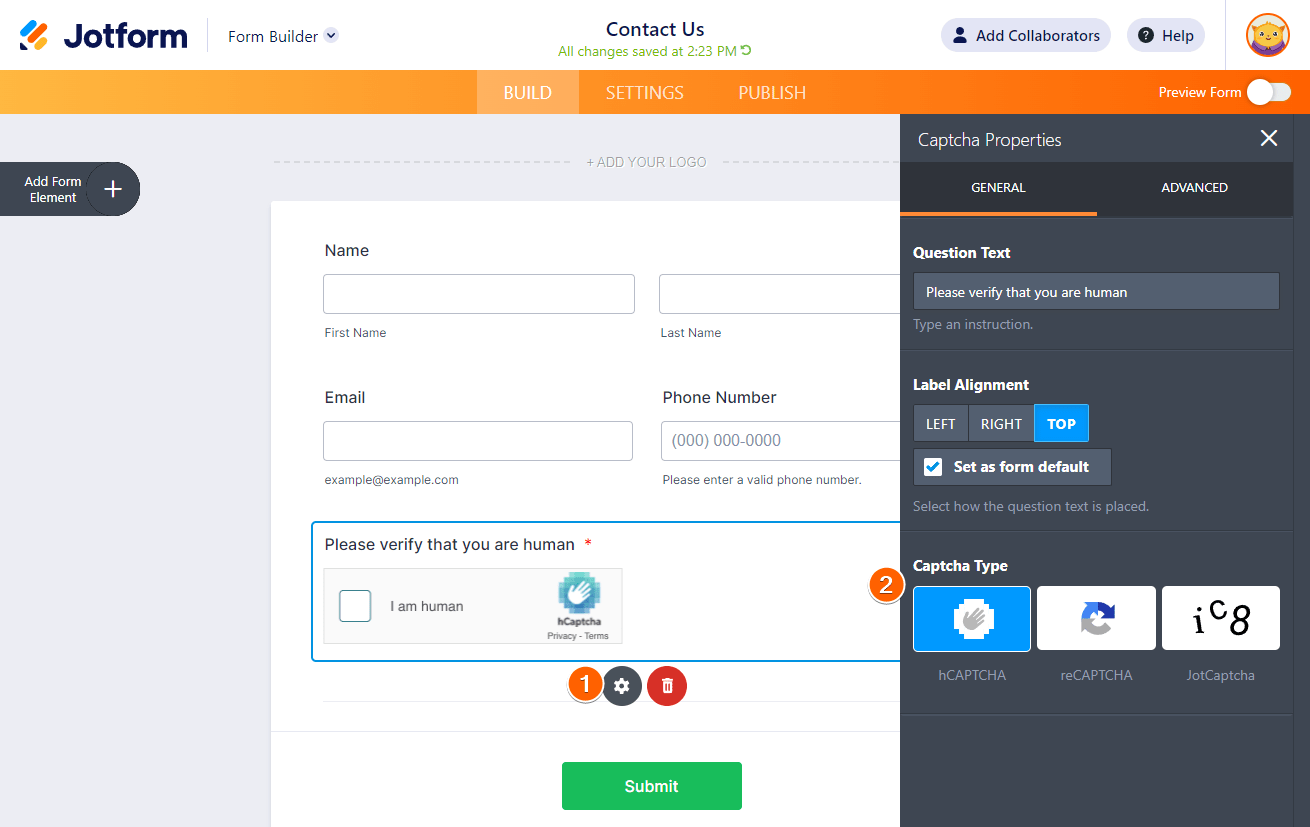
What is hCAPTCHA?
hCAPTCHA is another form of CAPTCHA specializing in deep learning and visual domain machine learning at scale, focusing on securing online systems from increasingly sophisticated modern threats. hCAPTCHA is the default captcha for eduForms.
What is the reCAPTCHA?
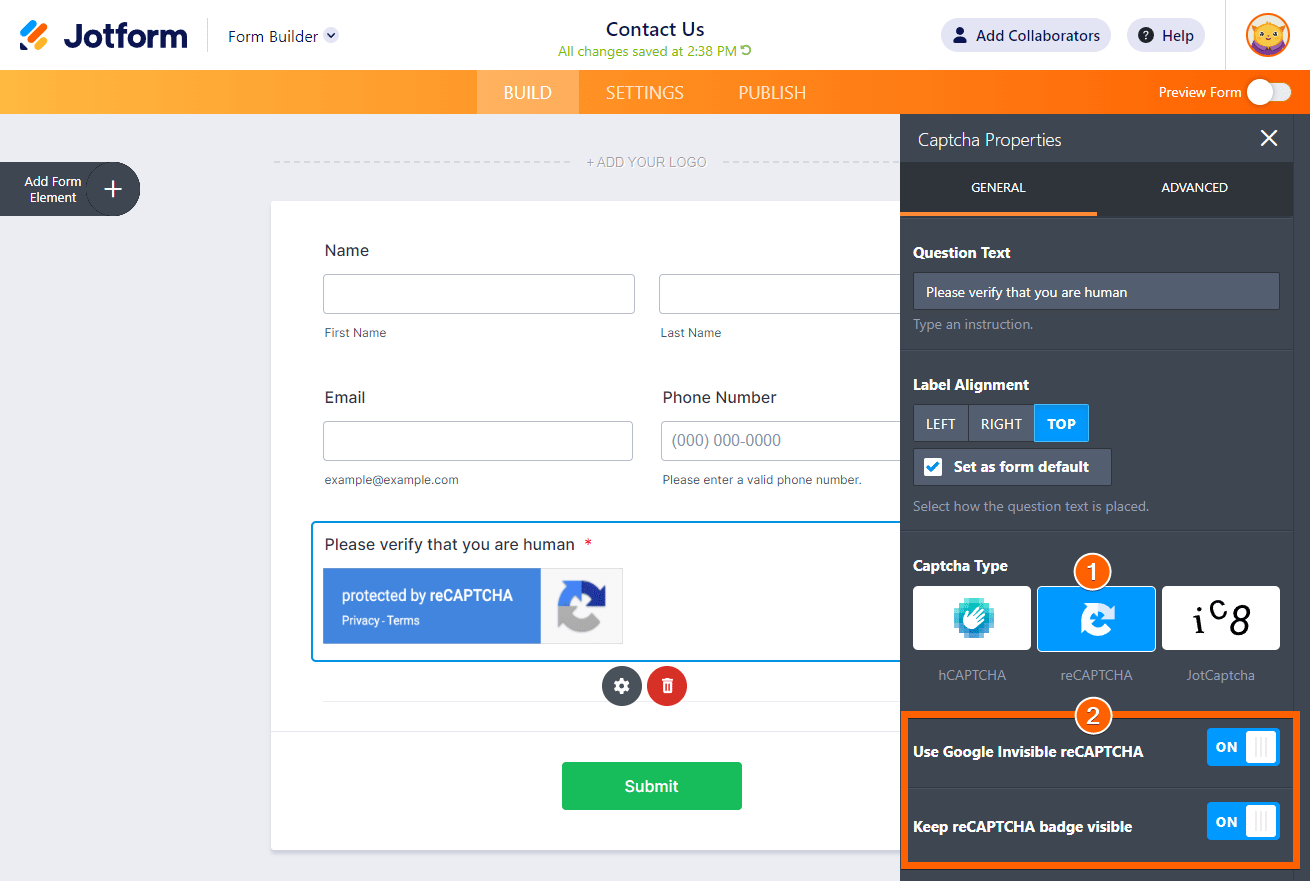
reCAPTCHA uses an advanced risk analysis engine and adaptive challenges to keep malicious bots from engaging in abusive activities on your forms. With reCAPTCHA, you can toggle to use the Google Invisible reCAPTCHA. Invisible reCAPTCHA is Google’s improved captcha system, which can differentiate humans from bots without additional input from the user. The Invisible reCaptcha will only activate when the user’s browsing patterns are, in some way, suspicious.
To use Google reCAPTCHA and activate Invisible reCAPTCHA, please follow these steps:
- In the Captcha Properties, click the reCaptcha option.
- Toggle Use Google Invisible reCAPTCHA to On if you wish to reCAPTCHA to be hidden. You can also toggle to display the badge.
What is JotCaptcha?
JotCaptcha is eduForms’ very own captcha as an alternative. If you want to use a simple captcha where users only enter a text from the provided image, you can switch to JotCaptcha.
Note
If your users entered the correct JotCaptcha, the form would submit right away. However, if the user entered an incorrect JotCaptcha, the form will redirect them to a separate page with the reCaptcha as secondary validation. They have to proceed with the reCaptcha prompt and click the submit button on the page.
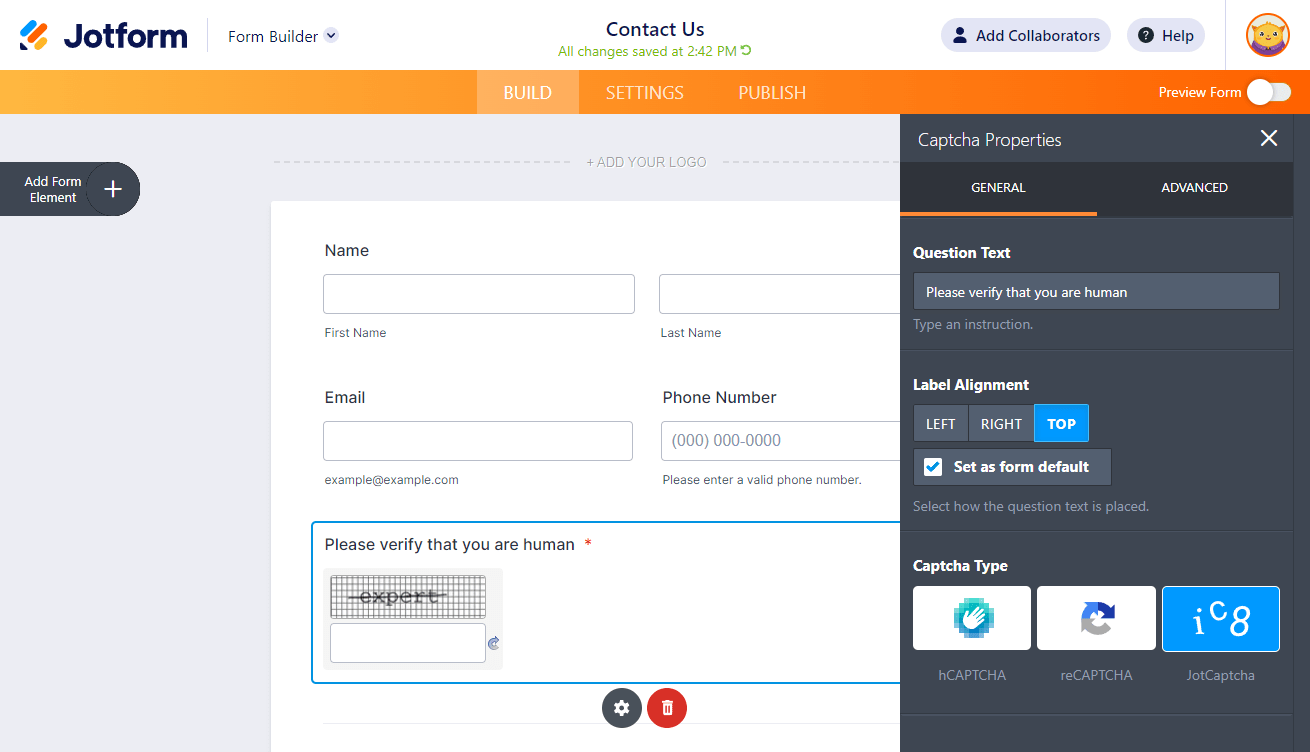
When using a CAPTCHA field, you do not have to set it as a required field. When you place it into your form, it is already automatically set to Required.
We also have some advanced captcha widgets that you can use. You can check them below: