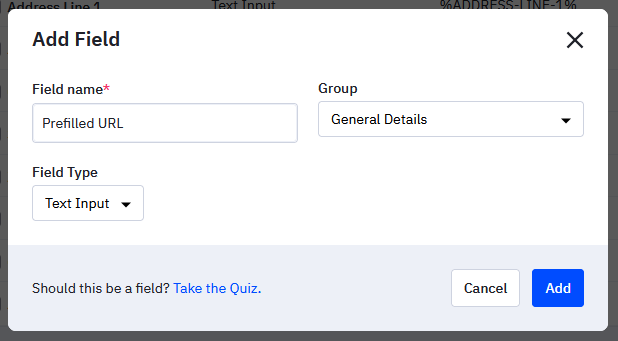
There are three fields you'll need to create in ActiveCampaign before connecting it with eduApply:
- Prefilled URL (text field)
- QR Code (text field)
- Application Status (text field)
Prefilled URL will contain the contacts prefilled URL. When creating campaigns in ActiveCampaign to have students complete their prefilled application, we will use this field to populate the link into a button in the email.
QR Code will contain a link to an image of a QR code that was generated by their prefill URL. This means that scanning this QR code will take them to their prefilled application. This will be used in conjunction with eduPostal to mail students their prefilled QR code to scan.
Application Status is for storing whether or not the contact has started or completed their prefilled application. When a student starts or completes the prefilled application, eduApply will update this field to either "Started" or "Completed". We use this to filter students out of the prefilled application promotion automation. It could also be used to trigger a separate automation for students that have started but haven't completed the automation.
Follow these steps to create these fields:
1. Login to the ActiveCampaign account you are creating the fields in.
2. Navigate to Lists > Manage Fields
3. Give the field its name (Prefilled URL, QR Code, and Application Status), specify a field group, and give it the Field Type "Text Input":