With eduConverse, you can create templates for both campaigns and automation emails. Doing so will help you maintain consistency with your emails, establish brand recognition with your contacts, and save you time.
In this article, you'll learn how to create a template for your emails.
- Create a template with the drag-and-drop template designer
- Create a template with custom HTML code
- Establish email template settings
Take note
This article covers how to create a template from the Manage Templates page.
However, there are other ways to create and save email templates:
- You can save a campaign as a template
- You can save an automation email as a template
Create a template with the drag-and-drop template designer
In this section, you'll learn how to create a template with the template designer.
1. Click "Campaigns" in the left menu.
2. Click "Manage Templates."
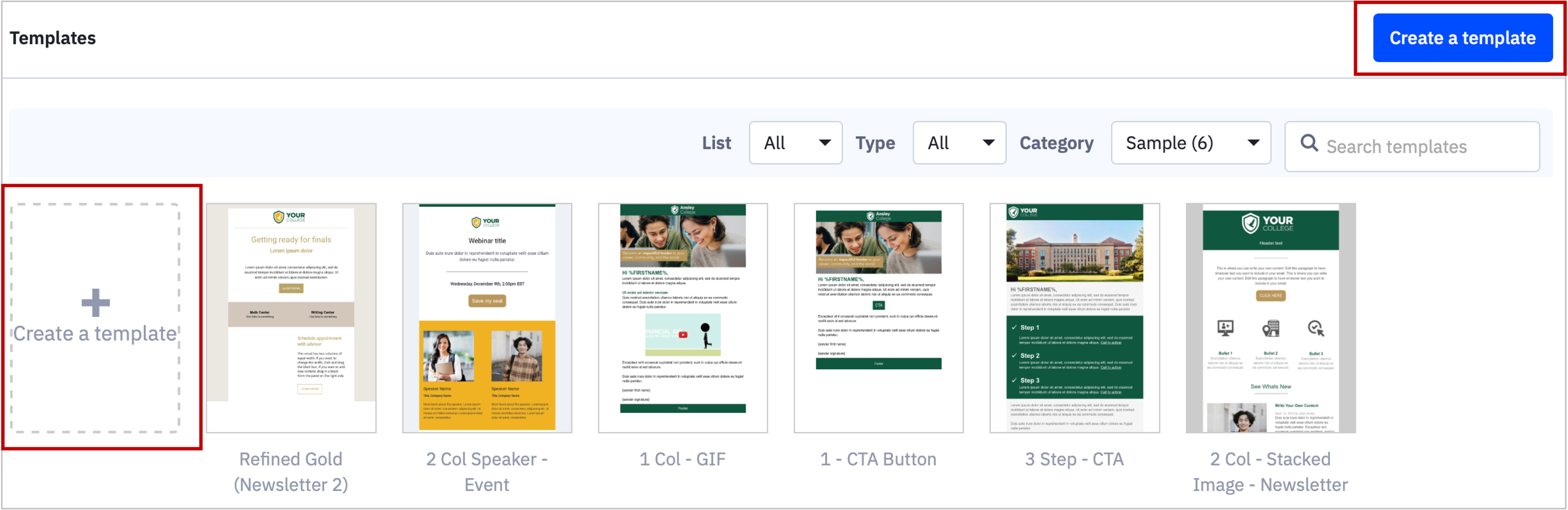
3. Click "Create a Template" button or image.
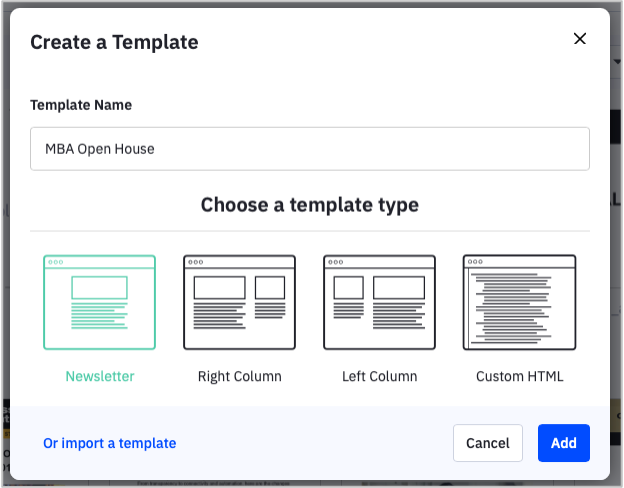
4. Name your template and choose a template type.
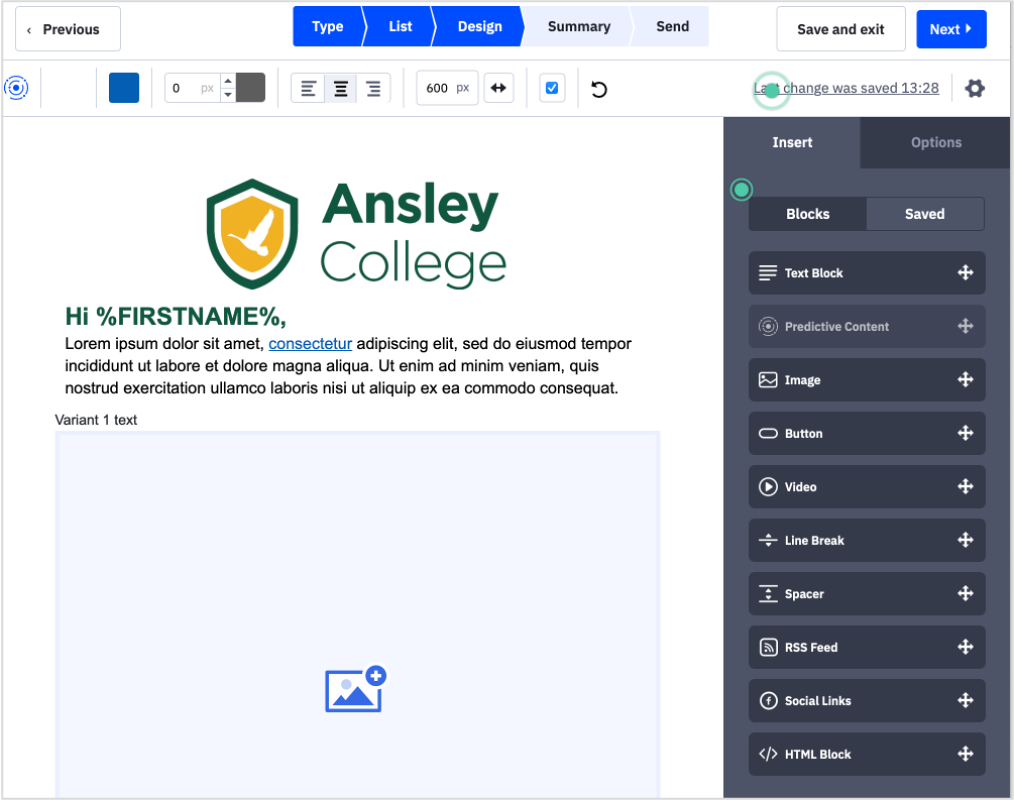
5. Drag and drop content blocks into your template layout.
For example, you can use content blocks that will allow you to add images, add or edit text, call-to-action button, and more. You can change the basic template type layout.
5. Click the "Save & exit" button.
Create a template with custom HTML
In this section, you'll learn how to create a template using your own custom HTML. This option is great if you or someone on your team is comfortable with editing HTML.
1. Click "Campaigns" in the left menu.
2. Click "Manage Templates."
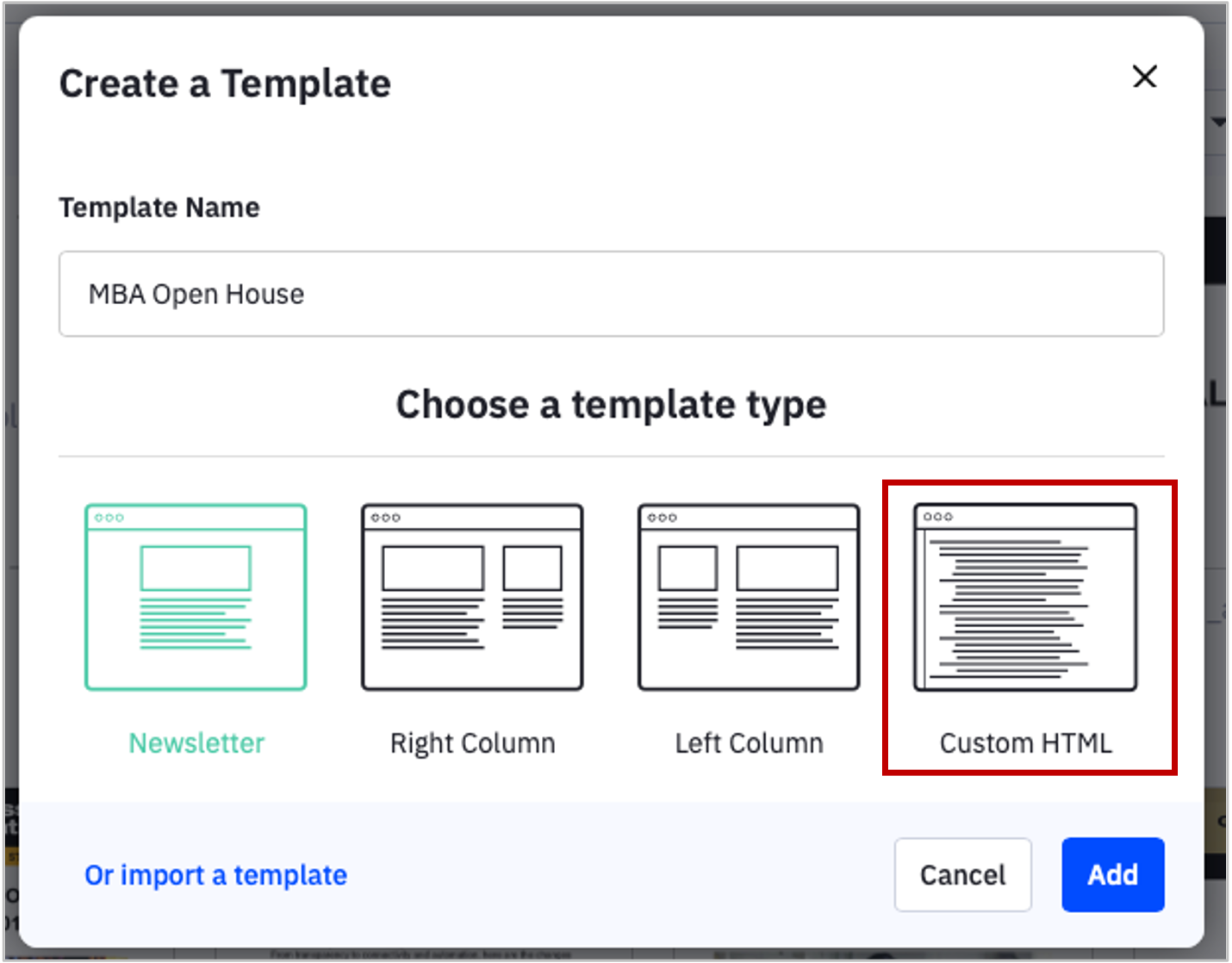
3. Click the "Create a Template" button and choose Custom HTML.
5. Compose the HTML into the code editor. The pane on the right will provide a preview of how the template will look.
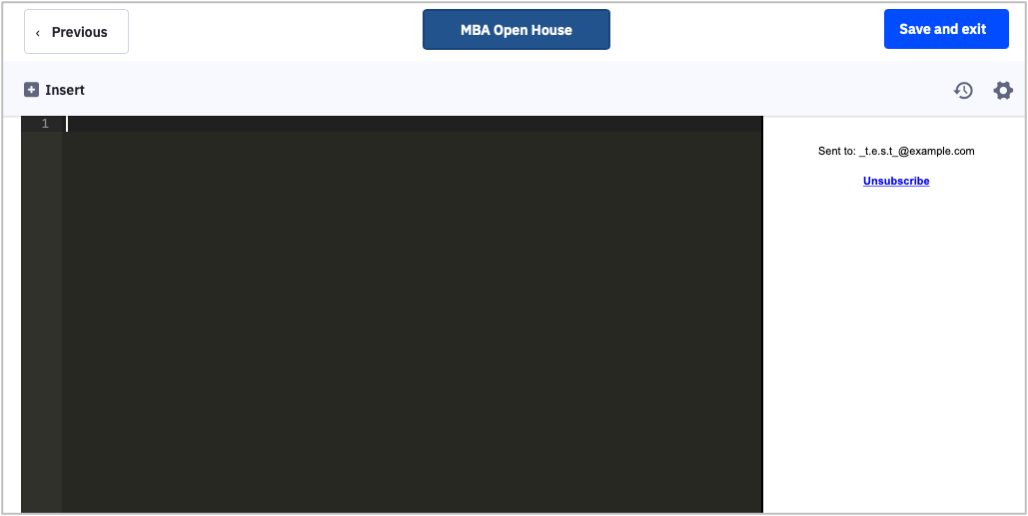
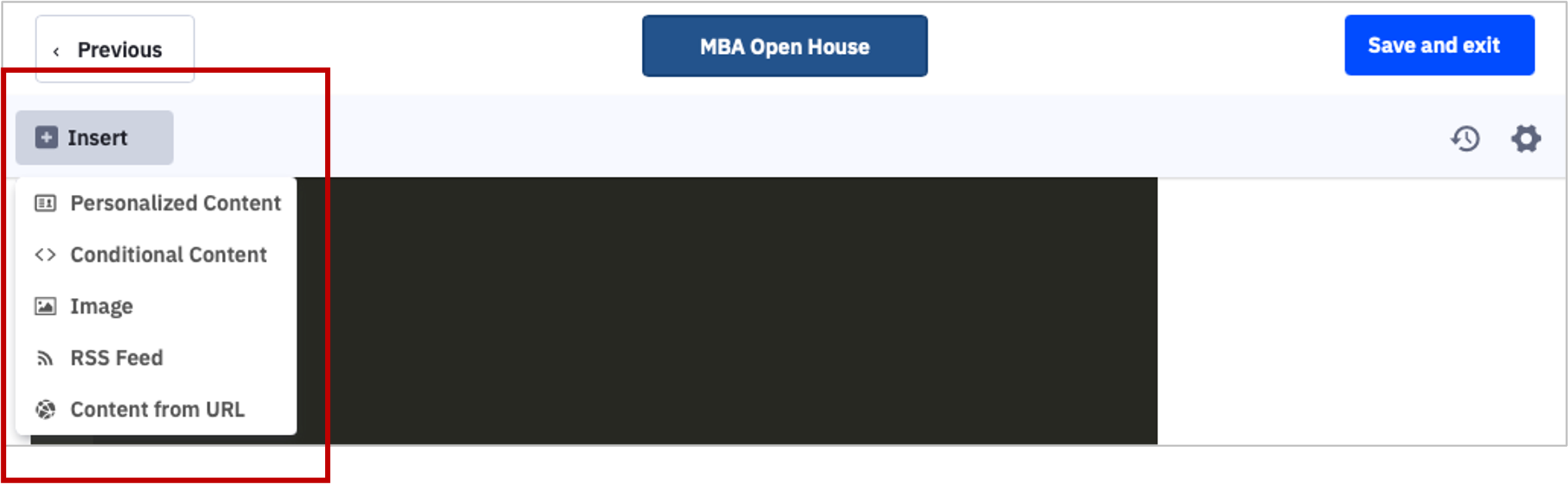
Once the custom HTML code is copied into the editor, you can insert personalized or conditional content, images, RSS feeds, or content from a URL.
When finished, click the "Save and exit" button.
The new template will appear at the top of the "Manage Templates" page. You can now use this template as a starting point for your campaigns and automation emails.
Email template settings
Each template has its own settings.
With template settings, you can email a test, preview the template in different email clients, view the spam check score, and more.
To access the settings for a template, click the template you wish to access settings for from the Manage Templates page. Then click the gear icon on the top right of the template.
The "Settings" modal will open:

Here you will be able to:
- Rename the template. Note that you can click the "Personalize" icon to personalize the template name.
- Apply one or more categories to the template.
- Toggle mobile responsiveness on or off.
- Send a test email of the template.
- Preview the template in different email clients or on desktop.
- View your spam check score.
For more information: