Using a template for your emails ensures brand consistency and messaging and also saves you time. Templates make email creation easier—once you select a template all you need to do is focus on the content.
Choose from a variety of pre-designed templates. You even have the option to build them from scratch using HTML.
In this article, you'll learn about the types of email templates.
Take note
- Account admins have access to all templates. All other account users must be granted permission to access templates
- Templates can be accessed from the Manage Templates page, the Campaign Builder, and the Automation Email Builder in your account
- Once you select a template to modify, a copy of that template is created for you. Any edits you make to the copy will not affect the original.
Choose a pre-defined template
Each of these templates use the drag-and-drop editor, making them mobile responsive and easy to customize. They also provide helpful placeholder content that you can use as a guide as you create your own copy.
All you need to do is select the template that best suits your needs and drop in your content.
- Click "Campaigns" in the left menu.
- Click the "Manage Templates" option.
- Choose a template and select Edit.
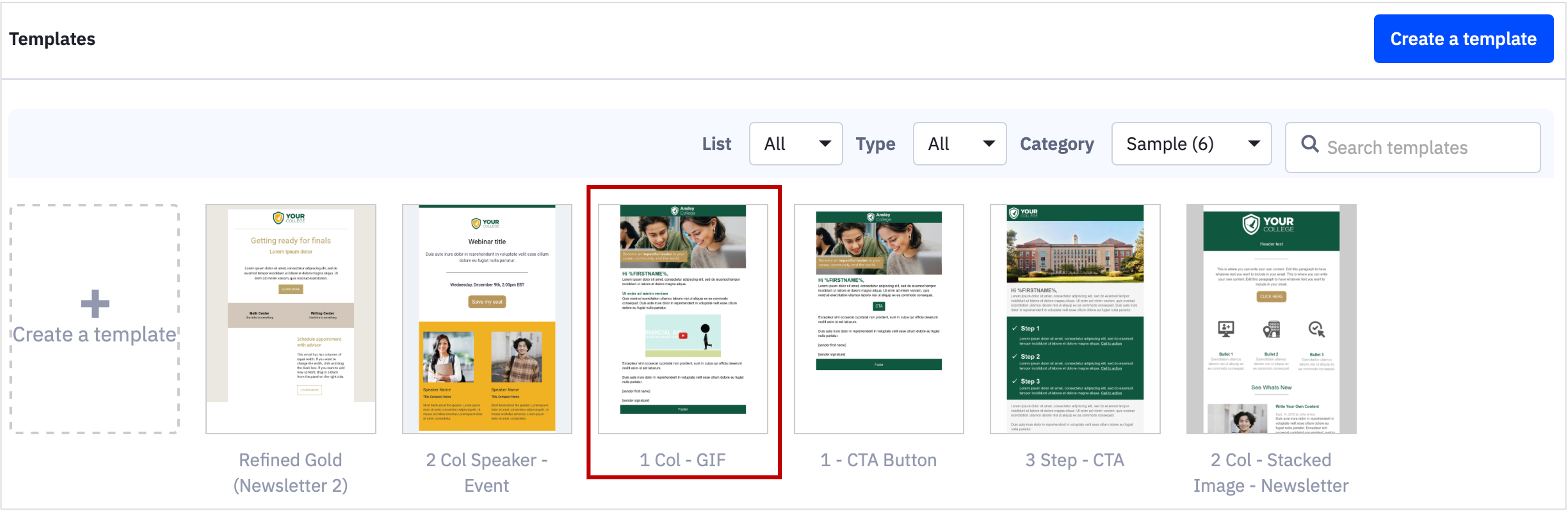

Choose from a template type
If you want to create a template from scratch using the drag-and-drop designer or wish to create a template using custom HTML, then the "Start from Scratch" template options may be for you.
To access these template options:
- Click "Campaigns" in the left menu.
- Click the "Manage Templates" option.
- Click the "Create a Template" button.
- Name your Template
- Choose a Template type.
Standard template formats
The standard template types use the drag-and-drop designer, making it mobile friendly and easy to customize. Choose from: 1) "Newsletter" that is a one column design with an image at the top of the message, 2) A "Right" or "Left" Column design with dual images.
Like other templates that use the drag-and-drop designer, you can customize this template by adding, removing, or rearranging different types of content blocks. See Overview of email design blocks.
Create a Custom HTML template
The HTML option gives you complete control over the design of your template. However, you must be familiar with HTML and CSS to create this kind of template.
If you aren’t familiar with HTML and CSS code, but still want an appealing visual design for your email, you might want to use one of the templates described above.
Emails that use an HTML template should be previewed before sending so that you can be sure your campaign displays correctly in the most popular email clients and on mobile devices.
To avoid display issues, you may want to use our templates above which have been carefully optimized to display correctly across popular devices and email clients.